Tips · Oct 17, 2026 · 9 min read
How to Build a Discord Ticket Bot with Private Channels

This guide shows how to build a Discord ticket bot that opens a private channel for each support request, lets one staff member claim it, and makes the channel read-only for the member on close. You describe it to camel-builder, test it as pretend members in a private test channel, then check privacy in your server. You don't write any code.
What a good Discord ticket bot does
A ticket bot gives each request its own room instead of a public help channel.
- A panel with one button. Members press Open a ticket instead of typing a command.
- A short form. Topic and Details give staff the problem up front.
- A private channel per ticket.
#ticket-1,#ticket-2and so on, for the member, staff and the bot. - One owner per ticket. The first staff member to press Claim owns it; a second claim is refused by name.
- Close that keeps the record. It saves who closed it and when, removes the buttons, and makes the channel read-only for the member.
- One open ticket per member. A second request links to the first.
It can't ping your staff role, because camelBot bots can't mention roles, @everyone or @here. It keeps no transcript, so deleting a closed channel deletes its conversation.
Build it or install one? A ready-made ticket bot is quicker if its standard flow fits. For your own form and claim rules, use camelBot's Discord bot builder.
What you need
- A Discord account, to sign in at bots.camelai.com.
- The Manage Server permission in your server.
- A channel for the panel, such as
#support. - Optional: a staff role, such as Support.
- A second Discord account with no staff role and no Administrator, to check privacy.
- No credit card and no code. camelBot is free while in beta.
Step 1: Describe the ticket bot to camel-builder
Sign in. The first screen asks What should your bot do? Paste this and select Continue:
Build a support ticket bot. /setup (Manage Server only) saves our
staff role and posts a panel here with an "Open a ticket" button.
/addstaff and /removestaff (Manage Server only) keep a staff list.
Staff means the staff role, the list, and whoever ran /setup.
The button opens a form: Topic (short) and Details (long).
On submit, make a private channel (ticket-1, ticket-2, and so on)
that only the member, the staff role and listed staff can see.
Post the topic and details there with Claim and Close buttons,
and tell the member privately where it is.
Each member gets one open ticket; if they try again, link that one.
Only staff can press Claim or Close. Refuse anyone else privately.
A ticket has one owner: if it's already claimed, say who has it.
Close records who and when, removes the buttons, and locks the
channel so the member can still read it but can't post.
Save each ticket's status, who claimed it and who closed it.
The staff list lets you add helpers without the role, and it makes the staff rules testable in the test channel, where pretend members have no roles.
camel-builder writes, checks, saves and tries the code while camel-builder is working… shows. Ours asked no questions, finished with Built tickets · checks passed, and assumed that anyone who ever ran setup is staff and any staff member can close any ticket.
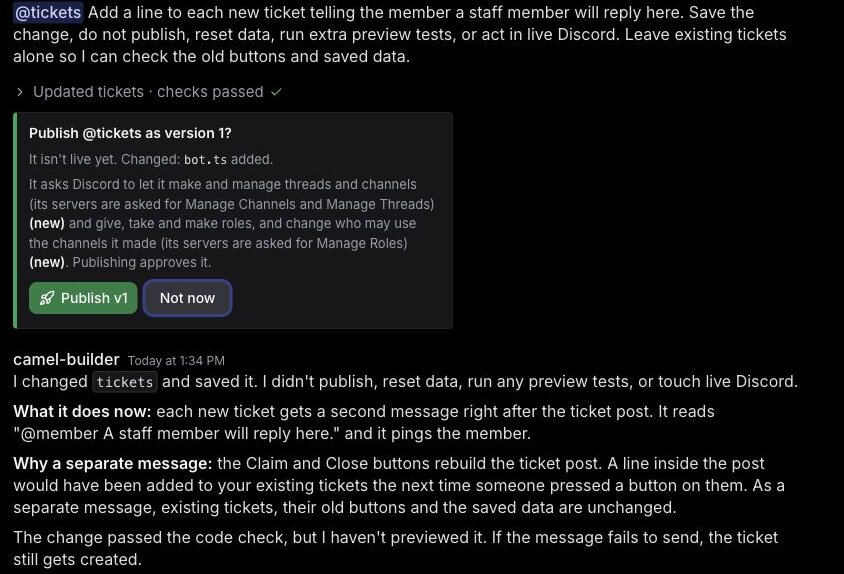
We sent two follow-ups. These are the parts that changed the bot; the rest told camel-builder not to publish yet and which tests to run.
Add a line to each new ticket telling the member a staff member
will reply here.
camel-builder posts it as a separate message, "@member A staff member will reply here.", so it isn't added to older tickets when their buttons rebuild the post.
Our second follow-up made the staff role optional. We phrased it in Discord's permission terms:
Make /setup role optional. Omitted role means no staff-role ALLOW
overwrite: ticket access is requester, setup runners and explicitly
listed staff only. Keep the built-in @everyone View Channel DENY and
bot allow. Never treat a missing role as everyone-is-staff. Preserve
supplied-role behavior and existing ticket records/controls; explain
if role checks on old tickets use global setup.
Setup now works without a role. Running it again without role clears a saved role, and Claim and Close on older tickets check the current staff settings, so a later setup changes who can use them.
Step 2: Pick Camel's app or your own app
- Camel's app (marked Recommended) is ready now. Replies come from the shared bot user, camel, and commands start with the bot's name.
- Your own app takes about 5 minutes on Discord's developer site and gives the bot its own name, picture and top-level commands. Its token goes in camelBot's token field, never the chat.
Both support the same features, and you can switch later. On Camel's app, rename the suggestion to tickets, so commands read /tickets setup, /tickets addstaff and /tickets removestaff, then select Create tickets. Bots using Camel's shared app in a server share one Discord name and picture, from the first one added with a look.
Step 3: Test claims and refusals in the test channel
Every bot gets a private test channel, #try-tickets; nothing there goes to Discord. Talk as yourself, treated as the server owner, or pretend members Alex and Sam, who have no permissions.
Start with ⋯ > Reset test data, because camel-builder's trials share the test database. Then:
- As Alex, run
/tickets setup: "Alex can't use /setup: it needs Manage Server." As yourself, run it withroleset to the sample Moderator role. The panel appears. - Run
/tickets addstaffwithmemberset to Sam. - As Alex, press Open a ticket, fill in the form and select Submit. A note stands in for the channel, "Made a private channel #ticket-1 for Alex, Sam, user …, role … (a preview changes nothing in Discord)", then the post shows Claim and Close.
- Submit again as Alex: "You already have an open ticket".
- As Sam, open a separate ticket. This creates ticket #2; leave it open.
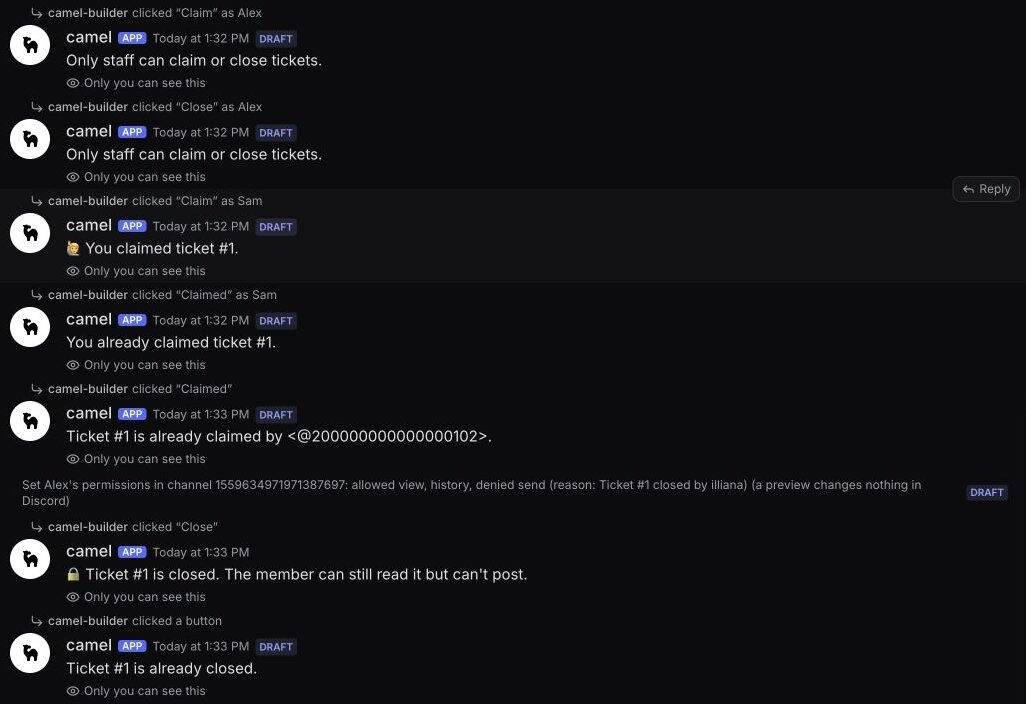
- As Alex, press Claim and Close on ticket #1: "Only staff can claim or close tickets."
- As Sam, press Claim on ticket #1: "You claimed ticket #1." The button turns into a disabled Claimed, so ask camel-builder to "press Claim on ticket 1 again as Sam, then as me." We got "You already claimed ticket #1." and "Ticket #1 is already claimed by" Sam.
- As yourself, press Close on ticket #1. A note sets Alex to "allowed view, history, denied send", the buttons go, and the reply says "The member can still read it but can't post."
- As Alex, open a new ticket, #3. Switch to yourself and run
/tickets removestaff member:sam, then press Claim on ticket #3 as Sam. Sam is refused. - Open ⋯ > Look at test data.
In the test channel, camel-builder ran steps 6 to 8 for us. Mentions show there as raw codes, and the permission note changes nothing in Discord.
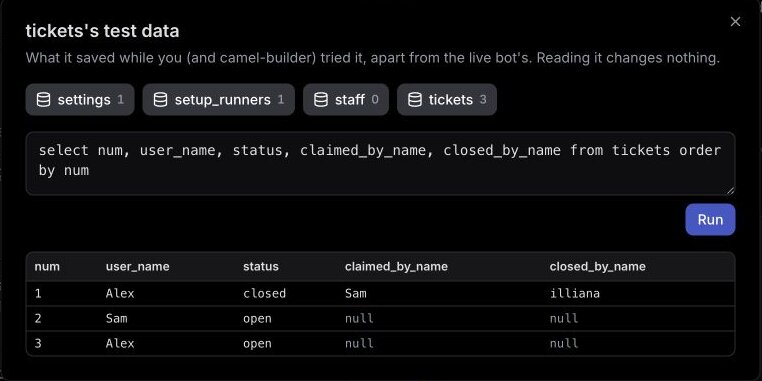
Test data keeps whoever ran setup separate from the staff list, so the person who ran setup can claim even with an empty staff list. In a separate persistence check, we saved a code change: all three tickets kept their statuses, and an old ticket's Claim still worked.
A failure shows Your bot hit an error on with Show details; tell camel-builder "fix that". Alex's refused setup shows the same way, as expected.
It's working when:
- Alex and Sam can't use staff commands, and Alex can't claim or close.
- Each member has at most one open ticket.
- Test data shows one claimer and the closer per ticket, after a code change too.
The staff-role check and real privacy wait for your server.
Step 4: Publish it and post the panel
After a save, a card asks Publish @tickets as version 1? and lists Manage Channels, Manage Threads and Manage Roles. Select Publish v1; camel-builder never publishes on its own.
Select Add to Discord, pick your server and #support, and approve. camelBot shows tickets is live in #support. Run /tickets setup role:@Support, or /tickets setup alone: "No staff role saved: ticket access is the member, setup runners and listed staff only. The panel is posted here." Add helpers with /tickets addstaff.
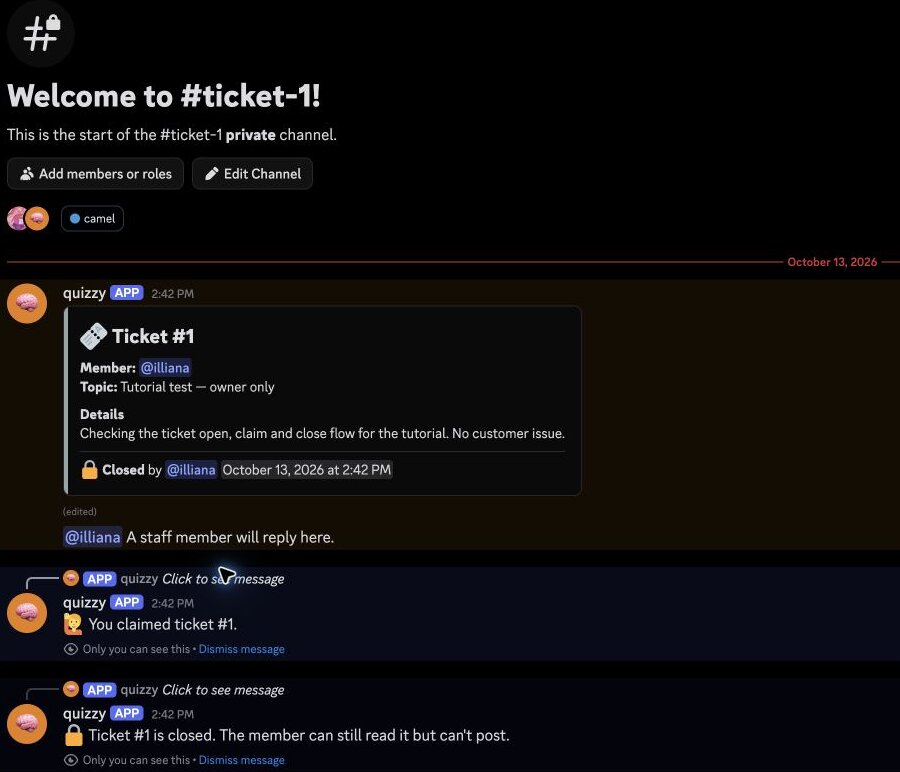
When we tried this in our server, we set up without a role, then opened, claimed and closed one ticket through Discord's form. #ticket-1 appeared at the top of the channel list, outside any category, and Close left the post without buttons. In Discord, the replies show as quizzy, the trivia bot from our first tutorial. That's because on Camel's app every camelBot bot in a server shares one name and picture, taken from the first bot added with one.
Check privacy and permissions in Discord
- Read Discord's permission list. Expect View Channel, Send Messages, Send Messages in Threads, Embed Links, Read Message History, Add Reactions, Change Nickname (Camel's app), Manage Channels, Manage Threads, Create Public Threads, Create Private Threads and Manage Roles. Never Administrator. If Discord skips the list, as it did for us, the bot's role in Server Settings > Roles shows what it has.
- Leave the bot's role where it is. The card's "give, take and make roles" covers all of Manage Roles, but this design only changes channel permissions. Role order matters for giving or editing roles and acting on members, so skip camel-builder's advice to move the bot above your staff role.
- Don't test as the owner or an admin. Discord shows every channel to the server owner and anyone with Administrator, and channel settings don't stop them posting.
- Test with a normal member. Open a ticket from your second account. It and a staff account should see the channel; an account with neither shouldn't. After Close, the member should read but not post. View Server As Role (a role's menu in Server Settings > Roles) shows what a role sees, but not one member's own settings.
- Test the staff role. A member with the saved role who isn't listed should be able to claim.
- Inspect a closed ticket. In Edit Channel > Permissions > Advanced permissions,
@everyoneshould have View Channel denied. The member who opened it should have View Channel and Read Message History allowed and Send Messages denied. In our server the closed ticket showed exactly this. That confirms the settings; only a normal member's account confirms the effect. Our shared bot already inherited Administrator during the live run, so operation with only the listed permissions is still unverified. - Add the bot only to
#support. On Camel's app it sees every message in its channels.
Troubleshooting
| Symptom | Why | Fix |
|---|---|---|
Members don't see /tickets | Its commands all need Manage Server, so Discord hides it by default | Expected; members use the panel |
| No channel opens | Manage Channels is missing, or the bot made 200 channels | Re-add with Add to Discord, or delete old tickets |
| Close fails | Manage Roles is missing | Grant it; camel-builder says the ticket stays open, so close again |
| Staff Claim refused | Not listed or in the saved role, or setup cleared the role | Rerun /tickets setup with role, or /tickets addstaff |
| New helper can't see older tickets | camel-builder says listed staff join only newer tickets | Add them in Discord, or use the role |
| camel-builder warns the bot "isn't added to" a ticket | Test-channel tickets are made up | Expected in the test channel |
Limits that matter for tickets
| Limit | Value |
|---|---|
| Fields per form | 5 |
| Channels the bot makes | 200 per server, not counting deleted ones |
| Database | 100 MB per bot |
Closed tickets count toward the 200 until deleted. camel-builder also told us a ticket channel fits 24 people plus the staff role. The full list is in Permissions and limits.
FAQ
Can a Discord ticket bot make a private channel for each ticket?
Yes. This one hides each ticket channel from @everyone and lets in the member, staff and the bot. The server owner and Administrator roles still see every channel.
Do I need a staff role?
No. Without one, staff are the people who ran setup and anyone added with /tickets addstaff. A missing role never makes everyone staff.
Next steps
Open the panel to a few members first. The Discord moderation bot guide uses the same staff-list pattern, and a Discord welcome bot can point newcomers to #support. camelBot is free while in beta, with no credit card; AI use in your bots draws on a daily allowance.