Tips · Oct 19, 2026 · 9 min read
How to Build a Discord Verification Bot with a Rules Button
A Discord verification bot for rules acknowledgement posts your rules with an I agree button, gives members who press it a Verified role, and records who agreed and when. You describe it to camel-builder, test it privately, then set Discord's permissions so newcomers see only the rules.
What a good Discord verification bot does
Verification here means pressing a button to agree. The bot doesn't check identity or age, so it isn't an age gate or raid protection.
- One panel, one button. Your rules and I agree sit together in the rules channel.
- A role you choose. Staff pick the role in setup. It opens nothing by itself; your channel permissions do that.
- One record per member. User ID, name, and time. Pressing again changes nothing.
- Nobody agrees for someone else. The button acts only for whoever pressed it.
- Staff-only commands. Setup, status, and reset need Manage Server.
It does nothing when people join, which is a welcome bot's job, and it gives one required role rather than the optional interests of reaction roles.
On Community servers, Discord's own Rules Screening makes new members accept your rules before they can talk. If that's enough, use it. A bot fits when newcomers should see only the rules channel, or you want a record and a per-member reset.
What you need
- A Discord account, to sign in at bots.camelai.com.
- Manage Server, and the right to edit roles and channel permissions.
- A second Discord account without Manage Server, for the final check.
- No Server Members intent or Message Content; it uses only commands and a button.
- No credit card and no code. camelBot is free while in beta.
Step 1: Describe the rules bot to camel-builder
Answer What should your bot do? with this prompt, swapping in your own rules:
Build a rules verification bot: members agree to our rules to get
a role that opens the rest of the server.
/setup takes a role (Manage Server only). It saves the role and posts
a rules panel where I ran it: our rules (be kind, no spam or ads,
stay on topic, follow Discord's Terms) and a green "I agree" button.
Refuse @everyone and roles from another app.
Pressing "I agree" gives the presser, and only them, the saved role
and saves one record: user ID, name, and time. If they already
agreed, say when; don't give the role or record again.
If Discord refuses the role, save no record, tell them an admin must
check my Manage Roles and role position, and keep the error.
/status (Manage Server) shows the role, how many agreed, the 10
latest, and the last error. /reset (Manage Server) takes a member,
deletes their record, and removes the role.
Every reply is private, except the panel.
The rules live in the code, so to change them you ask camel-builder and publish again.
camel-builder writes the code, checks it, and tries each command while camel-builder is working… shows under the message box. When we ran this prompt, it asked no questions and noted: "To work live, the bot needs Manage Roles, and its role must sit above the verified role."
Changes are more messages. Step 3 uses this one:
Make the button say I have read the rules.
Keep the original panel and existing acknowledgement data intact.
Step 2: Choose how the bot shows up in Discord
Start on Camel's app, which is ready now. Commands begin with the bot's name: /rules setup, /rules status, and /rules reset. All three need Manage Server, so Discord normally hides /rules from members without it, though server integration settings can change that.
Your own app takes about 5 minutes on Discord's developer site and gives the bot its own name, role, and /setup. You can switch later. Name the bot rules and select Create rules.
Step 3: Try the verification button in the test channel
Nothing in the test channel, #try-rules, reaches Discord. The first button in the message box picks who you are: you (the owner), or Alex and Sam, pretend members with no permissions. The sample role Member stands in for Verified. Begin with Reset test data in the ⋯ menu.
- As Alex, run
/rules setup role:Member. It's refused under Your bot hit an error on: "Alex can't use /setup: it needs Manage Server. Try it as yourself (the server's owner)". That's expected, not a bug. - As yourself, run it. The panel appears, and a private reply says "Verified role saved: Member. The rules panel is posted here."
- As Alex, press I agree. A note says "Gave role Member to Alex (reason: Agreed to the rules) (a preview changes nothing in Discord)".
- Press again as Alex. The reply says "You already agreed on" with Alex's time, and no role note.
- As Sam, press once, then try
/rules reset member:alex. The press works; the reset is refused. - As yourself, run
/rules status(2 agreed, newest first), then/rules reset member:alex: "Deleted Alex's agreement. Role removed." Press as Alex again for a new role note and a new time. - Send the follow-up from Step 1. Once it's saved, press I agree on the original panel as Sam.
camel-builder ran steps 1 to 6 for us. We pressed step 7 by hand, which runs the saved code: the reply still showed Sam's first time, with no role note.
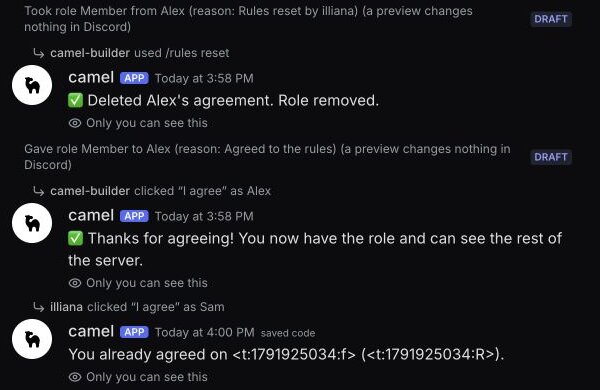
The old panel keeps its I agree label; new panels show the new one. Mentions and times show as raw codes here, and as names and dates in Discord.
Look at test data in the ⋯ menu opens the agreed table. After step 7 it still had exactly two rows: Sam's first time, and Alex's time from after the reset.
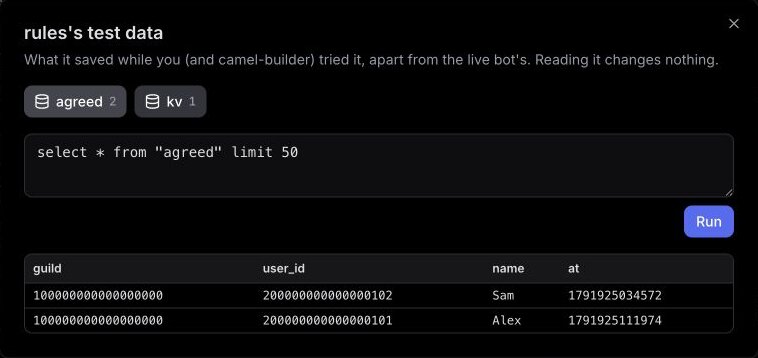
In camel-builder's own tries, setup refused @everyone: "I can't use @everyone as the verified role. Pick a real role." If something fails, select Show details and tell camel-builder "fix that".
It works when Alex and Sam can't use /rules, each member gets the role once however often they press, a reset removes a row, and old panels still answer after a code change. The test channel can't show role order, a refused role, or which channels members see.
Step 4: Publish it and add it to your rules channel
After a save, a card asks Publish @rules as version 1? and says the bot asks Discord to "give, take and make roles" (Manage Roles). Select Publish v1; camel-builder never publishes on its own.
Select Add to Discord, pick your server and rules channel on Discord's screen, and approve. Expect View Channel, Send Messages, Send Messages in Threads, Embed Links, Read Message History, Add Reactions, Change Nickname (on Camel's app), and Manage Roles. It never asks for Administrator; don't add it. camel was already in our server, so Discord skipped the list for us. If that happens, check the bot's role in Server Settings > Roles.
Test data doesn't carry over: in our server, /rules status started at Agreed: 0.
Set up the Verified role and channel access in Discord
The bot doesn't touch channel permissions, so Verified opens nothing until you set them. Work in this order, so nobody loses access before the panel exists.
Create a plain Verified role
In Server Settings > Roles, select Create Role and name it Verified. On its Permissions tab, turn on View Channels, and leave anything with Manage, Kick, Ban, or Administrator off.
Put the bot's role above it
Drag the bot's role above Verified: camel on Camel's app, shared by every Camel's-app bot in the server, or your app's role. A bot can give only roles below its highest role, so it doesn't need the top.
Post the panel
In your rules channel, run /rules setup and pick Verified for role. Running setup again posts a new panel and changes the saved role, and older panels keep working. The bot doesn't track its panels, so delete old ones yourself.
Show newcomers only the rules channel
A channel's own settings win over server-wide ones.
- In the rules channel's Edit Channel > Permissions, add @everyone with View Channel and Read Message History on the green check, and Send Messages on the red X if you don't want chat there. Add the bot's role with Send Messages on the green check, so it can post new panels.
- In Server Settings > Roles, check that staff roles and other bots' roles have View Channels on.
- On the same page, open Default Permissions (@everyone) and turn off View Channels. Anyone without Verified, or another role with View Channels, now sees only the rules channel.
- Find channels and categories that put @everyone's View Channel on the green check, such as announcements. They stay visible to everyone until you set it to the gray slash. Channels with @everyone on the red X stay hidden from Verified too.
Or set it per category: @everyone's View Channel on the red X and Verified's on the green check. Existing members see only the rules until they press, so post a heads-up first.
Check it with a second account
In our server, we tested as the owner with a temporary role that had no permissions. Pressing the panel added us to the role. A second press replied "You already agreed on October 13, 2026 at 6:11 PM (12 seconds ago)." /rules status showed Agreed: 1, and /rules reset removed the agreement and the role. Replies showed as quizzy, from our first tutorial, because Camel's-app bots in a server share one look.
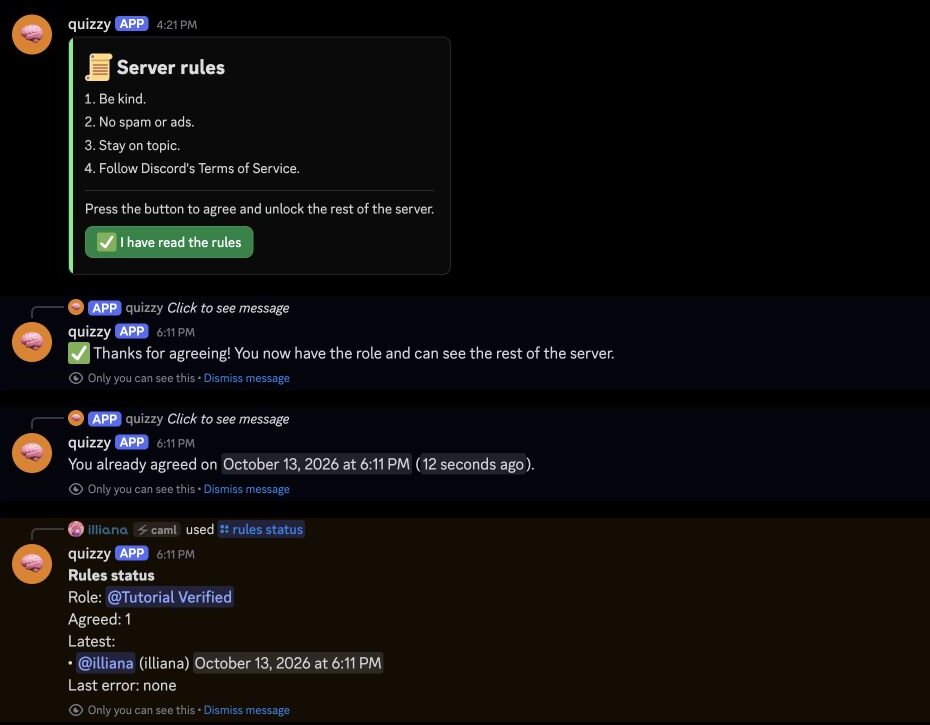
That shows the role given and taken, not access: the role opened nothing, the owner sees every channel, and our shared app already had Administrator there. Check the rest yourself:
- Join with your second account. It should see only the rules channel.
- Press I agree. Verified and the channels should appear.
- Type
/rules. Discord normally doesn't offer it; if it does, each use should be refused. - As the owner, run
/rules resetfor it. Verified and the channels go. - Drag Verified above the bot's role and press again. camel-builder says the member is then told "An admin must check my Manage Roles permission and that my role sits above the verified role." We didn't run this failure check, so confirm it, then drag Verified back.
View Server As Role, at the bottom of a role's Display tab, shows what that role can see.
Troubleshooting
A member pressed but didn't get Verified. The bot's role is below Verified or lacks Manage Roles; /rules status shows the error. Fix it in Server Settings > Roles. The bot is built to save no record then, so they can press again.
Verified members still see only the rules. Verified lacks View Channels, or a channel denies @everyone without allowing Verified.
The panel didn't appear. The bot isn't in that channel (use Add a channel on its Channels tab), or the channel denies its role Send Messages.
A reset says the role couldn't be removed. The bot deletes the agreement first, so the member may still have Verified. Remove it under the role's Manage Members tab, then fix the bot's role.
A returning member is told they already agreed. Discord drops roles when someone leaves, but the bot keeps its record. Run /rules reset for them, then they press again.
Limits to know
| Limit | Value |
|---|---|
| Role changes | 30 per minute per bot |
| Roles it can give | Below its highest role; not @everyone or another app's role |
| Slash commands | 25 per bot; this one uses 3 |
| Database | 100 MB per bot |
The full list is in Permissions and limits.
FAQ
Is a Discord verification bot the same as captcha or age verification? No. It records that someone pressed I agree, not who they are. Discord's server Verification Level can require a verified email or phone number.
Does a Discord verification button work for members who joined before the bot? Yes. Nothing depends on join events: anyone without Verified sees the rules channel and can press.
Can someone agree to the rules for another member? No. The record uses the presser's user ID. In the test channel, Alex's press saved only Alex's row, and Sam's reset of Alex was refused.
Next steps
Once the gate works, add optional roles with reaction roles, or point newcomers to your rules from a Discord welcome bot. Our Discord bot builder page has more ideas. camelBot is free while in beta, with no credit card. AI use in your bots draws on a daily allowance, and this one uses none.