Tips · Oct 18, 2026 · 9 min read
How to Build a Discord Welcome Bot That Helps New Members
A Discord welcome bot is the first thing a new member hears from your server. This guide builds one that posts a short welcome in a channel you choose, with your rules and three buttons that answer privately. You describe it to camel-builder, simulate joins in a private test channel, and add it to your server when it works. It gives no roles, and you don't write code.
What a good Discord welcome bot does
New members skim, so a good welcome is short. The bot in this guide:
- Posts once per join, in one channel. A greeting that mentions the new member, followed by your rules as a short numbered list.
- Offers next steps as buttons. Read the rules, Pick interests, and Introduce yourself each answer only the person who pressed.
- Remembers who it has welcomed. A returning member gets a one-line "Welcome back".
- Explains a missed welcome. Its setup command shows the last join it saw and why the last welcome failed.
- Gives no roles and starts no DMs. This welcome bot keeps its greetings in the channel.
When Discord's own tools are enough
Discord's own new member messages post a join notice whose text you can't change. Community servers also get Onboarding for default channels and role questions; set that up first if you have it. A bot adds your own words and buttons.
What you need before you start
- A Discord account. You sign in at bots.camelai.com with Discord.
- The Manage Server permission, and a welcome channel new members can see.
- For real joins, Discord's Server Members intent on the bot's app (covered below).
- No credit card and no code. camelBot is free while in beta.
Step 1: Describe the welcome and its buttons
Sign in, and on What should your bot do? paste this, with your own channel names in place of #roles and #introductions:
Build a welcome bot. When someone joins my server, post one welcome
in the saved welcome channel: the saved greeting ({member} becomes
a mention of them), the saved rules as a numbered list, and three
buttons that answer privately to whoever presses them.
Read the rules: show the rules; say to ask a mod if unsure.
Pick interests: say to choose topic roles in #roles.
Introduce yourself: suggest saying hi in #introductions.
Give no roles, skip other bots, and do nothing when someone leaves.
If someone it already welcomed joins again, post only one line,
"Welcome back, {member}", with no buttons.
Add /setup for members with Manage Server, with options channel,
message, and rules (split on semicolons). Options left out keep
their saved value. /setup answers privately: after a change, a
preview of the welcome; with no options, the settings, the number
welcomed, the last join it saw, and why the last welcome failed.
Because the greeting and rules live in /setup, staff can reword them without a new version.
camel-builder writes the code, checks it, and tries the main paths while camel-builder is working… shows under the message box. When we ran this prompt, it asked no follow-up questions, and its summary noted that "a member counts as welcomed only after the post succeeds".
Changes are more messages. Step 3 uses this follow-up:
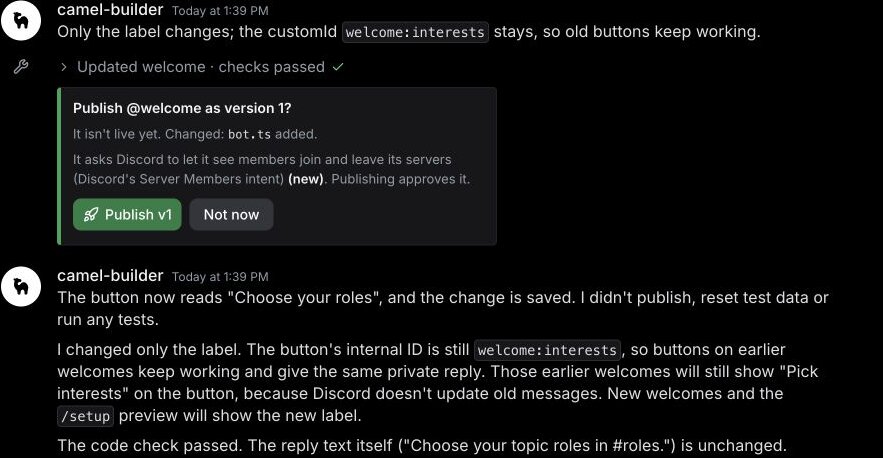
Rename the Pick interests button to Choose your roles.
Keep the buttons on earlier welcomes working.
Step 2: Choose Camel's app or your own app
The test channel works the same on either app, and you can switch later. The difference is whether Discord sends the bot joins.
- Camel's app. Ready now. Commands start with the bot's name, like
/welcome setup. Joins arrive only while Discord allows the shared app to use Server Members, which you can't turn on yourself. - Your own app. About 5 minutes on Discord's developer site. It gets its own name and picture, the command is
/setup, and you control Server Members, so it's the better choice for a welcome bot you rely on.
This guide uses Camel's app and the name welcome. Select Create followed by the name. You can move it to your own app later from its Settings.
Step 3: Simulate joins in the test channel
Every bot has a private test channel, #try-{name}, beside the chat, and nothing there goes to Discord. The first button in the message box picks who is talking (Talk as you, Alex, or Sam) and where (the bot's channel or #general).
To simulate a join, ask camel-builder in the chat: "Simulate Sam joining the server". Its tries run its unsaved work, so let it save first. Quote option text that has spaces. Mentions show here as raw codes; Discord shows names.
Start with ⋯ > Reset test data, then:
- As Alex, run
/welcome setup channel:general. It's refused, shown as an error: "Alex can't use /setup: it needs Manage Server. Try it as yourself (the server's owner)". That's expected, not a bug. - Simulate Sam joining before any setup. Nothing posts, and your
/welcome setupmarks Sam "(not welcomed: no welcome channel saved)" and says "Run /setup channel:." On Camel's app, that's/welcome setup. - Run
/welcome setup channel:general message:"Welcome to Camel Crew, {member}." rules:"Be kind; No spam; Stay on topic". The private reply shows a preview that "posts nothing". - As Alex in #general, say hello. Nothing happens; chatting isn't a join.
- Simulate Sam joining again. One full welcome appears in #general with Sam's mention, three rules, and three buttons. The failed attempt didn't count.
- Press the buttons as Sam and Alex, some twice. Each answer is marked Only you can see this, and nothing new posts.
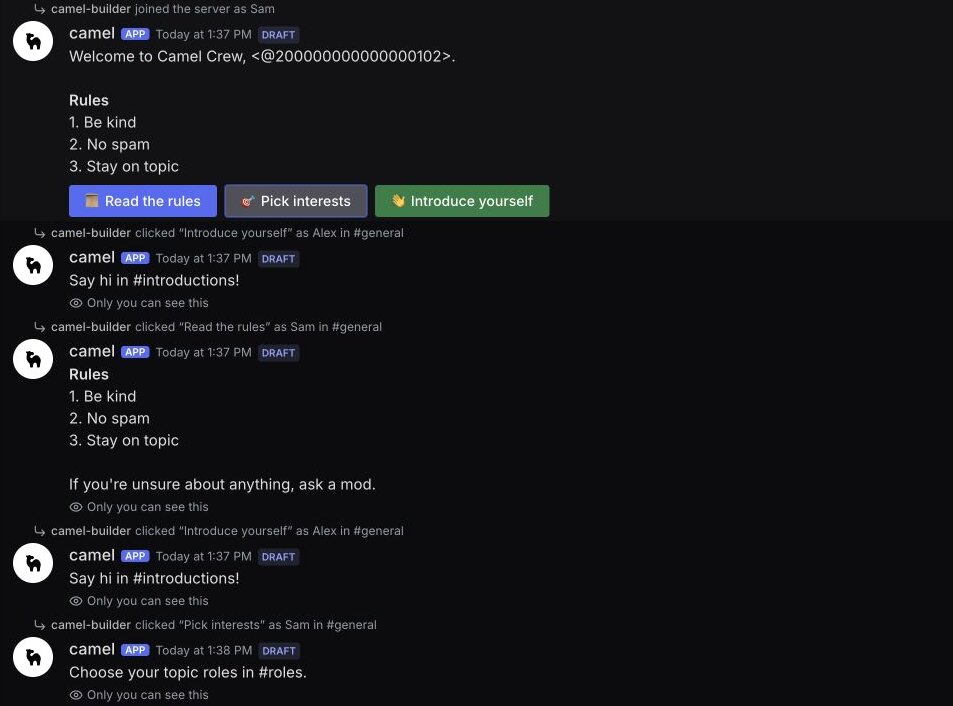
- Simulate Sam leaving and rejoining. Leaving posts nothing; the rejoin posts one "Welcome back" line.
- Run
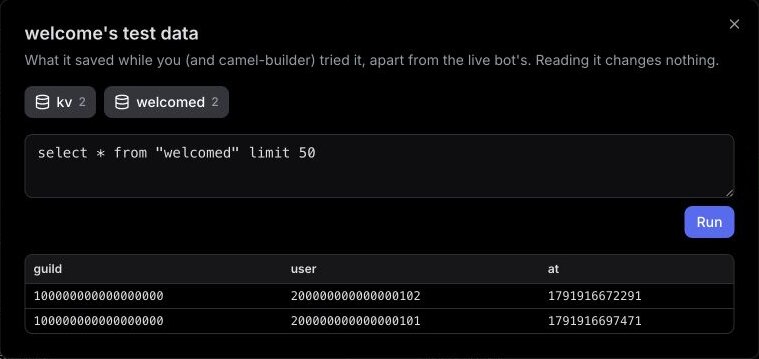
/welcome setup message:"Hey {member}, welcome in."and simulate Alex joining. Alex gets the new greeting, and/welcome setupshows "Members welcomed: 2" and "Last welcome failure: none". - In ⋯ > Look at test data, the list of welcomed members has one row per member, with the time it first welcomed them. Sam has one row after three joins; there's no join counter.
- Send the rename follow-up. Once it's saved, talk as Sam in #general and press Pick interests on Sam's first welcome. When we tried this, it still answered privately, tagged saved code. A new simulated join showed Choose your roles, and
/welcome setupkept the settings, now with three members welcomed.
It's working when each join gives one welcome in the saved channel, a missing channel is explained, button answers stay private, returning members get one line, Alex is refused, and a code change keeps settings, the welcome list, and old buttons. If something fails, select Show details and tell camel-builder "fix that".
Step 4: Publish it and add it to your welcome channel
The steps above ran in the test channel with simulated joins. When we added the bot to our server, /welcome setup saved our channel and replied privately with a preview that "posts nothing": a welcome with the Read the rules, Choose your roles, and Introduce yourself buttons. We haven't yet seen a real member join trigger a welcome there, so the join steps below are instructions to check in your own server. On your own app, connect it and turn on Server Members first (next section).
- After camel-builder saves, a card asks Publish @welcome as version 1? and notes the bot asks Discord "to let it see members join and leave its servers". Select Publish v1. camel-builder never publishes on its own.
- Select Add to Discord, pick your server and welcome channel on Discord's screen, and approve. The card shows Waiting for Discord… until the bot is in. On your own app, a camelBot dialog picks them instead.
- Run
/welcome setupin Discord with your channel, greeting, and rules. Test settings don't carry over. - Have a friend or second account join with an invite link. Expect one welcome with a mention, a Read the rules answer only they see, and their join in
/welcome setup. The next bot you add should get no welcome.
Turn on Server Members and check permissions
Server Members is one of Discord's privileged intents: a per-app setting that lets an app receive joins and leaves and see who is in its servers. It's off by default, and without it a welcome bot sees no joins.
On your own app:
- In the Discord Developer Portal, select New Application, open Bot, select Reset Token, then Copy.
- In the bot's Settings in camelBot, select Change next to Discord app, then Connect another app, and paste the token into the token field, never the chat. Connecting points the app's commands at camelBot, so use a new app.
- Select Continue, then Switch to followed by the app's name. The command becomes
/setup. - Ask camel-builder to "turn on Server Members for this bot's app" and approve its card, or switch on Server Members Intent under Privileged Gateway Intents on the app's Bot page.
Since June 2026, Discord bases review on reach, not server count. If fewer than 10,000 unique users can see your app across its servers, you switch privileged intents on and off yourself. Past that, Discord notifies you in the Developer Portal; you have 90 days to apply, the app keeps working during review, and approved apps reapply each year. See Discord's privileged intent review guide.
On Camel's app, you can't change the setting. Joins arrive only while Discord allows the shared app to use Server Members. If welcomes don't arrive, switch to your own app.
Then check the rest:
- Install screen. Only the basics: View Channel, Send Messages, Send Messages in Threads, Embed Links, Read Message History, and Add Reactions, plus Change Nickname on Camel's app. Server Members isn't a permission, so it isn't listed. It asks for neither Manage Roles nor Administrator; don't add them.
- Welcome channel. The bot posts only in channels it's added to. Check that
@everyonecan view yours, and with Onboarding, make it a default channel. - Staff only. The command needs Manage Server, so Discord can hide
/welcome(or/setup) from other members, though server integration settings can change that. Check from an account without Manage Server; anyone without it is refused.
When the welcome doesn't post
No welcome, and the last join seen didn't change. The join never reached the bot. Turn on Server Members on your own app, or switch from Camel's app to your own.
/welcome setup shows the join as not welcomed. Read the failure line. Save a channel if none is set. Otherwise add the bot to it with Add a channel on its Channels tab, or give its role View Channel and Send Messages there.
Two greetings for every join. Turn off Discord's own join messages in your server's system messages settings.
/setup isn't in the slash menu. On Camel's app, type /welcome and pick setup.
It works in the test channel but not in Discord. It isn't published (Unpublished changes), or nobody has run /welcome setup there yet.
Older welcome buttons stopped answering. A change replaced the button's internal ID. In Activity, select Ask camel-builder to fix and ask it to keep old buttons working.
Limits for a welcome bot
| Limit | Value |
|---|---|
| Welcome length | 2,000 characters of text per Discord message |
| Slash commands | 25 per bot; this one uses 1 |
| Database | 100 MB per bot |
| Your own Discord apps | 5 per account; one app runs one bot |
| AI | None at runtime; building and testing use your camel-builder allowance |
The full list is in Permissions and limits.
FAQ
Will a Discord welcome bot greet members who were already in the server? No. Adding the bot isn't a join. Someone who was there before the bot, leaves, and rejoins gets the full welcome, since the bot never welcomed them.
Does a welcome bot need the Server Members intent? Yes. Discord sends joins only to apps that have it. You switch it on for your own app, and apply only once more than 10,000 users can see it. On Camel's app, it depends on Discord's approval of the shared app.
Can the welcome bot give new members a role? It could, but this one doesn't on purpose: a role on join gives access to anyone with an invite link. Give access when members agree to the rules instead.
Next steps
Two natural next steps are a verification bot that gives access once members agree to the rules, and reaction roles for optional interests, where your Choose your roles button can point. For more ideas, browse our Discord bot builder. camelBot is free while in beta, with no credit card. AI use in your bots draws on a daily allowance.