> ## Documentation Index
> Fetch the complete documentation index at: https://camelai.com/docs/llms.txt
> Use this file to discover all available pages before exploring further.
# Start Chat Message
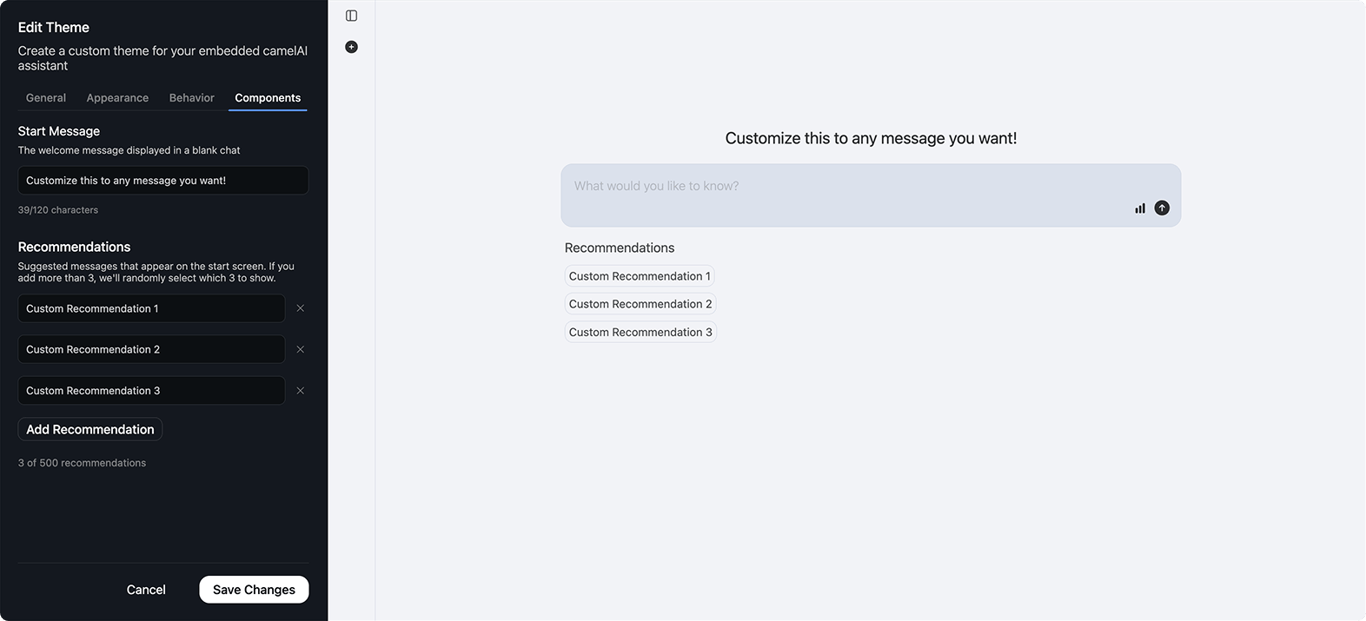
> Welcome your users with a customized message that appears above the input field in new chats
**camelAI Legacy Product** — This documentation covers camelAI's embedded analytics offering, which is no longer being actively developed. We are migrating existing customers to the new camelAI platform. For the current product, visit [camelAI](https://camelai.dev).
 ### Default Message
By default, camelAI displays: **Your data is connected. Ask me anything!**
### Customization
Replace the default with your own welcome message:
* **Character Limit**: Maximum 120 characters
* **Visibility**: Appears in every new chat session
### Examples
Here are some effective start messages for different use cases:
```text General Discovery theme={null}
What insights can I help you discover today?
```
```text Domain-Specific theme={null}
Ask about sales, inventory, or customer trends
```
```text Time-Sensitive theme={null}
Your Q4 metrics are ready to explore
```
```text Guidance-Focused theme={null}
Start with 'Show me...' or 'What are...'
```
### Default Message
By default, camelAI displays: **Your data is connected. Ask me anything!**
### Customization
Replace the default with your own welcome message:
* **Character Limit**: Maximum 120 characters
* **Visibility**: Appears in every new chat session
### Examples
Here are some effective start messages for different use cases:
```text General Discovery theme={null}
What insights can I help you discover today?
```
```text Domain-Specific theme={null}
Ask about sales, inventory, or customer trends
```
```text Time-Sensitive theme={null}
Your Q4 metrics are ready to explore
```
```text Guidance-Focused theme={null}
Start with 'Show me...' or 'What are...'
```